Happy Friday! Happy March! And Happy ALMOST Spring!!
I have a quick tip for you today. Go into anyone of your classes. Hover over the Reports tab and click the very first report that appears in the menu. This is the Attendance Detail Report.
You'll have some report templates already created ...
Choose the Curr Term; No Break; Show Details to keep this report for yourself.
Choose the Curr Term; Page Break; Show Details if you will be sharing this info with students.
The report will give you all absence and tardy totals along with Attendance notes added by you or the office. Along with the details you'll find the Guardian Name and phone number readily available should you need to make a call home.
Lots of great info easily accessed right from your gradebook!
Have a GREAT weekend!!!

2.22.2019
Tip of the Week! Cloning Assignments From a Previous Course
Cloning assignments is easy-peasy! You can even clone an assignment from a course that you taught LAST year. To do this, you'll hover over the Assignments tab and select List Assignments.
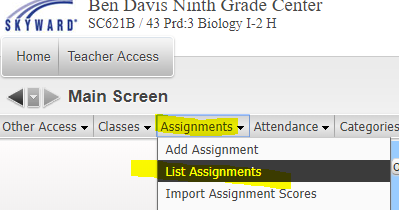


Click the button that says Clone From Existing Gradebook.
On the next screen you'll have the option to choose from any course you have previously taught. Check the box next to the class you are cloning from and click the Next button:

The assignments from the selected course will be displayed on the screen. Place a check in the box next to the assignments you want to clone over into your current class. Click the Next button once you have made your selection.

Select the class(es) where you want the cloned assignments to appear:

You will be given the option to edit the due dates for each assignment. Edit as needed. Otherwise, the month and day will be the same as the original assignment, but with the current year:

Click FINISH and you will be automatically taken to your Assignment screen. Your assignments have been cloned and are ready to score!
1.29.2019
Tip of the Week: Drop Lowest Score
I don't get this question very often but thought I would share this useful feature that you'll find in Educator Access Plus! Skyward allows you to Drop the Lowest Score in your gradebook if you wish to do so. You can do this for all students OR it gives you the option to choose specific students. It also allows you to Drop within a Category or even exclude certain assignments from being dropped overall. Check out the information in the link below on how you can use the Drop Lowest Score feature in Skyward!
Drop Lowest Score
Drop Lowest Score
1.24.2019
Tip of the Week: Skyward Mobile App!
Download the Skyward Mobile App!
- Immediate access to student info, schedules, attendance and more!
- Available for Family & Student Access as well -- introduce the app to your students!
- Available for download on Google play, iTunes, amazon appstore and Windows Store
Once Installed:
- Search District by location
- Enter Login & Password
- Create Passcode
Stay connected!
1.07.2019
Tip of the Week: Export Your Gradebook
Some teachers have asked how to create a "Hard Copy" of their gradebook at the end of the Semester. Did you know that you can Export your gradebook for each class? Just click on the Export tab and it creates an Excel file of your gradebook! You can Download/Save/Print if you wish!


12.13.2018
Tip of the Week: Transferring Grades for New Students
I am sharing a document that Skyward provides for us in SkyDocs. Follow the link to learn the different ways you can transfer grades for New Students who enroll in your class. The directions are a bit lengthy -- call me if you are not sure which option fits best for you! 📱X8668
Transferring Grades for New Students
Transferring Grades for New Students
12.11.2018
KDG Teachers: COPY Grade Marks from Quarter 1 into Quarter 2
Kindergarten Teachers! Remember that you can copy your Grade Marks from Quarter 1 into Quarter 2. You can make changes after the grades have been copied. Directions are in the link below!
Subscribe to:
Posts (Atom)