10.29.2018

Tip of the Week! Change Your Skyward Password!

πŸ”πŸ”πŸ”Just a reminder as we near the end of CYBER SECURITY AWARENESS month that you need to change your passwords before November gets here! To change your Skyward password, you'll need to click on the Account link located in the top right corner in Skyward. πŸ”πŸ”πŸ”


Click the Change Password button:


Enter your Current Password and click Submit:


Enter and Confirm your New Password and click Submit:


You should receive a pop-up that your account has been updated successfully. Click OK:


Yay!!  You are good to go!!! πŸ‘πŸ‘πŸ‘πŸ‘πŸ‘


10.09.2018

Tip of the Week! Requesting a Grade Change

🍁🍁🍁A lot of you will be asking for these directions this week! If you need to correct an assignment score or letter grade from Quarter 1 then you'll need to follow the directions in the link below. Also let the secretary at your building know that you've made a change in your gradebook. It will not officially be changed in Skyward unless the secretary approves this change on her end! Contact me if you need more help πŸ‘Œ

Request a Grade Change

10.02.2018

Tip of the Week! Google Translator in Family Access

Did you know that parents can turn on Google Translator in Family Access? Below is a link to Google Translator directions that you can share with parents. ***This should translate everything that parents see in Family Access except for the PDF files found on the student profile.*** This is a GREAT tool for Wayne families!

Turning on Google Translator in Family Access

10.01.2018

Kindergarten Teachers: Quarter 1 Report Cards

If you need a refresher on entering grades for you students then click the link below!
ALSO -- please remember that your comments will go in the Kindergarten HOMEROOM class.

KDG Report Card Directions
KDG Report Card Comments

9.24.2018

ICYMI: Skyward Tips of the Week!

Did you miss one of my weekly Skyward tips for teachers? Check out the right side of this page. Scroll until you see the labels for my posts. If you click on tip of the week you'll see I've already posted 10 tips this school year! 😱😱😱 Check them out -- and come back each week for more useful tips to make the most out of Teacher Access!


9.20.2018

Tip of the Week! Printing Skyward Logins for Students

There are a lot of great features in Skyward for students. Do you have your students log in to Skyward to check their Attendance and Grades? Or do you create Online Assignments in Skyward for your students? Students can also communicate with you through Message Center once logged in to Skyward.

Your first step is to be sure all of your students know their Skyward login. I've added a template inside of teacher gradebooks to make this easier on you! You can choose to print a roster that has all student logins OR you can print a page for each student that will display their login.

These reports DO NOT include the password.  You'll know if a student has previously logged in, as their password will display as: ********

To run the report as a roster for yourself

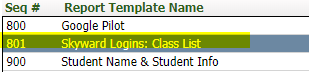
Hover over the Reports tab and select Class Roster. Locate the template named Skyward Logins: Class List and click Print:


To run the report as one page per student

Hover over the Reports tab and select Student Information. Locate the template named Skyward Logins: 1 Page per Student and click Print:


9.12.2018

Tip of the Week! Student Sort in Your Gradebook

Have you checked out the different ways you can sort your students in the gradebook? Not only can you sort alphabetically by last name, but you can also sort by first name, Student's Assigned Seat, Student's Grade, OR you can create your own Gradesheet Sequence. To access this sort feature from one of your classes, hover over the Display Options tab and select Student Display.


Choose from the available options or click on the Modify Gradesheet Sequence link to create your own sort. You can move students up or down in the list to create your preferred list. Remember to SAVE your changes!