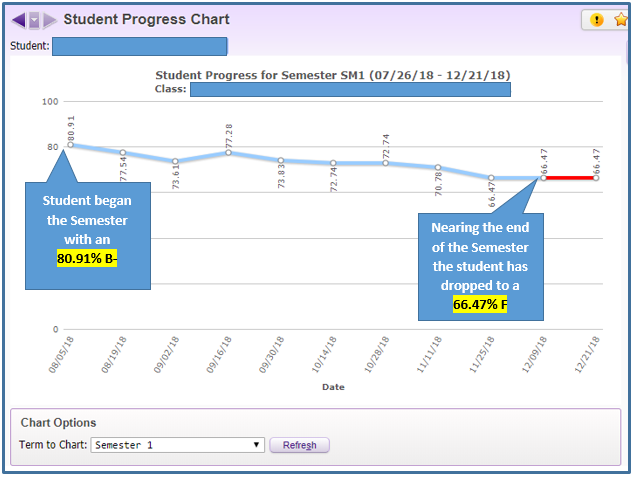
Below is an example of a Chart that can be printed from your gradebook. This is a great visual that allows students to view their Progress for a selected Grading Period. To access/print these Charts you'll hover over the Charts tab in your Gradebook and select Student Progress.
Select the student whose chart you want to view from the drop down menu and click Print if you desire. Check it out below!!! πππ
Be sure to check out the other Charts available while you are in the Charts tab! You will also be able to print Term Grade Distribution and Category Average charts.
11.27.2018
11.21.2018
11.19.2018
Tip of the Week: Grade Entry Tip
At some point you may want to award more points than an assignment is worth. Did you know you there is a setting in your Gradebook that allows you to suppress the message shown below? πππ
This tip comes in handy if you often score assignments greater than the Max Score! To turn off this alert; Click on Display Options and choose Assignment Display:
Check the box under Assignment Score Entry as shown below:
Click SAVE
11.12.2018
Tip of the Week:: Skyward Preferences
Did you know that you can change the Theme Color in Skyward? OR that you can enlarge the font size throughout the system? If you click on the Preferences link in the top right corner of Skyward you'll be able to personalize your settings. Take a look at the diagram below for an explanation of the different changes you can make to your own Skyward account πππ
11.05.2018
Tip of the Week! Accessing Prior Year Classes
This week's tip will show you how you can access your gradebooks from prior school years. Click on Teacher Access --> My Gradebook.
By default, your current year classes are displayed. Click on the Prior Years Classes tab to see all classes that have ever been scheduled to you.
Your prior year classes will be listed by the school year. Click on the View Gradebook link to access a view only version of any prior year gradebook. There are also a limited number of report options you could run if you choose.
10.29.2018
Tip of the Week! Change Your Skyward Password!
πππJust a reminder as we near the end of CYBER SECURITY AWARENESS month that you need to change your passwords before November gets here! To change your Skyward password, you'll need to click on the Account link located in the top right corner in Skyward. πππ
Click the Change Password button:
Enter your Current Password and click Submit:
Enter and Confirm your New Password and click Submit:
You should receive a pop-up that your account has been updated successfully. Click OK:
Yay!! You are good to go!!! πππππ
10.09.2018
Tip of the Week! Requesting a Grade Change
πππA lot of you will be asking for these directions this week! If you need to correct an assignment score or letter grade from Quarter 1 then you'll need to follow the directions in the link below. Also let the secretary at your building know that you've made a change in your gradebook. It will not officially be changed in Skyward unless the secretary approves this change on her end! Contact me if you need more help π
Request a Grade Change
Subscribe to:
Posts (Atom)