9.20.2018

Tip of the Week! Printing Skyward Logins for Students

There are a lot of great features in Skyward for students. Do you have your students log in to Skyward to check their Attendance and Grades? Or do you create Online Assignments in Skyward for your students? Students can also communicate with you through Message Center once logged in to Skyward.

Your first step is to be sure all of your students know their Skyward login. I've added a template inside of teacher gradebooks to make this easier on you! You can choose to print a roster that has all student logins OR you can print a page for each student that will display their login.

These reports DO NOT include the password.  You'll know if a student has previously logged in, as their password will display as: ********

To run the report as a roster for yourself; 

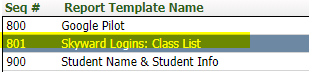
Hover over the Reports tab and select Class Roster. Locate the template named Skyward Logins: Class List and click Print:


To run the report as one page per student; 

Hover over the Reports tab and select Student Information. Locate the template named Skyward Logins: 1 Page per Student and click Print:


9.12.2018

Tip of the Week! Student Sort in Your Gradebook

Have you checked out the different ways you can sort your students in the gradebook? Not only can you sort alphabetically by last name, but you can also sort by first name, Student's Assigned Seat, Student's Grade, OR you can create your own Gradesheet Sequence. To access this sort feature from one of your classes, hover over the Display Options tab and select Student Display.


Choose from the available options or click on the Modify Gradesheet Sequence link to create your own sort. You can move students up or down in the list to create your preferred list. Remember to SAVE your changes!


9.06.2018

Tip of the Week :: Using High Contrast Borders

Take a look at the image below! Last year Skyward made an enhancement to the gradebook display. Some of you may not have even noticed or maybe have no preference. BUT -- if you do have a preference you can follow the directions below to switch between the default view OR using high contrast borders.


To choose the High Contrast Option...
1. Navigate to one of your classes in your gradebook
2. Hover over the Display Options tab and select Assignment Display
3. Under Assignment Display Options, check the box next to Use High Contrast Borders
4. Click SAVE

8.28.2018

Tip of the Week: Seating Charts!

Did you know you can create a Seating Chart in Skyward? The link below will walk you through how to set this up under Attendance. This feature also allows you to show and print pictures for yourself and/or substitute teachers -- check it out below!

Seating Chart Directions

8.22.2018

TWO Tips this Week! Elementary Teachers: Email Progress Reports

For Elementary Teachers you get TWO ✌ tips this week! Progress Reports will be going home soon! I'm sharing directions on how you can email Progress Reports to parents/guardians. For those parents who do not have an email address in Skyward you have two options. You can 1) print their Progress Report, or 2) add their email address to Skyward! Directions on Emailing and Printing the Progress Report are in the link below. ðŸ‘‡ðŸ‘‡ðŸ‘‡ Check out my earlier post for directions on Adding a parent/guardian email address to Skyward! 

Emailing Progress Reports

Tip of the Week! Add/Edit Guardian Emails

Did you know that you have the option to add/edit email addresses for parents/guardians of your students? This feature was added last year to Educator Access Plus! While on the student profile screen, locate and click the button that says Edit Guardian Email. If a parent gives you an email address that is not in Skyward you will now be able to add it yourself!

Click on the button found on the Student Profile screen:


Highlight the guardian you wish to update and then click the EDIT button.
Enter the Home Email address and click SAVE!

Call me if you need help! X8668

8.15.2018

REPOST! Tip of the Week -- Creating Student Groups

Do you have a need to create students groups for your classes in Skyward? There is a feature in the gradebook that allows you to create up to 10 groups in one class. An example use for this feature would be if you have more than one grade level in a classroom and you wish to use a separate set of assignments for each group. The directions in the link below will explain how you can create separate student groups and also how to create assignments for one group or all.

Create Student Groups