4.22.2019
Tip of the Week: Message Center
π’ Message Center is a fantastic tool for communicating with both students and parents. You can communicate with one student, one class, multiple classes, or just pick and choose any number of students from one class! Messages can either be posted to Family/Student Access, emailed - or BOTH. You can also control whether or not parents and students can reply directly to your post.
Check out the SkyDoc link below for more information about using Message Center.
πππ Message Center Info
4.15.2019
Tip of the Week: Teacher Log
The Teacher Log in Skyward is a tool that can be used to keep track of notes for individual students. It can be used a number of different ways.
Example Uses for Teacher's Log: π
+ Personal Notes: Create a personal log of dates/times that you've made a phone call home to a parent. You will want to be sure to un-check the Family and Student Access boxes to keep the notes private. π
+ Student Goals. List goals and progress for students. Check the appropriate boxes to share in Family and/or Student Access. π
+ Discussion/Conference Log: Create a log of discussions you've had with a student about missing or late work. Check the box next to Parent Access so that parents can see how many times you have reached out to the student. π¬
The Teacher's Log can be located by clicking on the Display Options tab -->Teacher's Log
Once you've selected your student, click the "Add New Log Entry" button:
The log note will default to the current quarter. Add a Summary and Detail note. Leave the Family & Student Access boxes checked to share with parents and student. UN-CHECK to keep the note private. Click SAVE!
πππBelow is what parents and students will see when a note has been added to the Teacher's Log and shared with parents/students:
Clicking the icon pointed out above will bring up a comment box for student/parent to view:
πREMEMBER! Notes are made public by default. Un-Check the boxes next to Family & Student Access to keep the notes private. π
4.08.2019
Tip of the Week! Add a New Widget to Your Dashboard
First of all -- I hope Spring Break was AMAZING for you!! I know everyone missed my weekly Skyward tips!! π
This week I want to let you know about a Widget that you can add to your Dashboard. The Grade Distribution Chart is a great one to add!
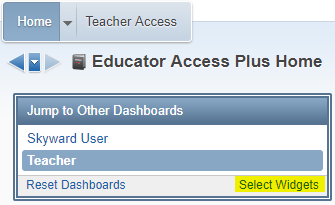
To add this widget, click on the Select Widgets link located in the Jump to Other Dashboards box.
This week I want to let you know about a Widget that you can add to your Dashboard. The Grade Distribution Chart is a great one to add!
To add this widget, click on the Select Widgets link located in the Jump to Other Dashboards box.
Place a check ✅ in the box next to Grade Distribution and click Save.
Your New Widget will appear on your dashboard. Click the Show Grade Distribution Chart link:
Hooray! π Your interactive chart will appear! Make sure you click on the current Quarter before you drill down to the subject. Pretty cool tool! π
3.22.2019
3.12.2019
Tip of the Week: REPOST -- Grade Change Request!
Many of you will need this quick refresher if you need to enter scores or change student grades after the Grading Period ends. Follow the directions in the link below to make a Grade Change Request!
Request a Grade Change
3.06.2019
Elementary TIPS of the week: Repost of Report Card Tips
It's hard to believe it's the end of Quarter 3!! π± This week I have some refresher tips as you complete your Quarter Grades. ✅ Check them out below!! πππ
Kindergarten Teachers
Report Card Directions
Report Card Comments
Copying Grades from a Previous Quarter
Elementary Teachers
Directions for Entering Grade Level Performance Marks
Enter Comments in HOMEROOM
Kindergarten Teachers
Report Card Directions
Report Card Comments
Copying Grades from a Previous Quarter
Elementary Teachers
Directions for Entering Grade Level Performance Marks
Enter Comments in HOMEROOM
3.01.2019
Tip of the Week... Attendance Detail Report
Happy Friday! Happy March! And Happy ALMOST Spring!!
I have a quick tip for you today. Go into anyone of your classes. Hover over the Reports tab and click the very first report that appears in the menu. This is the Attendance Detail Report.
You'll have some report templates already created ...
Choose the Curr Term; No Break; Show Details to keep this report for yourself.
Choose the Curr Term; Page Break; Show Details if you will be sharing this info with students.
The report will give you all absence and tardy totals along with Attendance notes added by you or the office. Along with the details you'll find the Guardian Name and phone number readily available should you need to make a call home.
Lots of great info easily accessed right from your gradebook!
Have a GREAT weekend!!!
Subscribe to:
Posts (Atom)